Body
IMPORTANT: After enforcement of passkey authentication, university faculty, staff, and students will be unable to authenticate using MS Authenticator.
Multifactor authentication requests
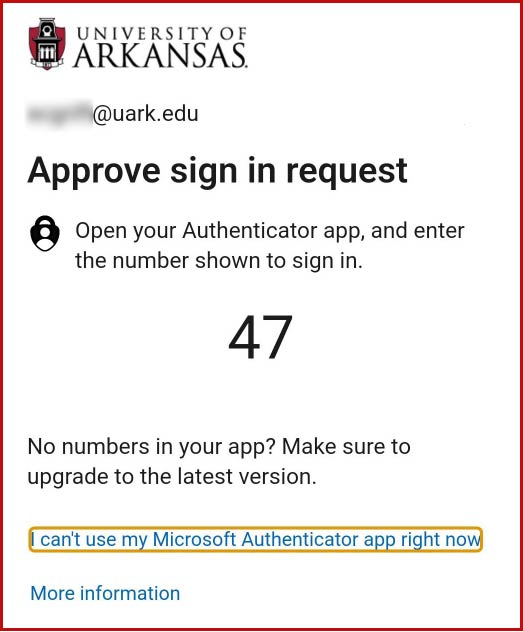
If you have not set up a passkey and are using only MS Authenticator as your MFA method, you will be prompted to authenticate with a two-digit number.
The login screen will display the number you will use to verify access on your phone's Authenticator app.
Verification
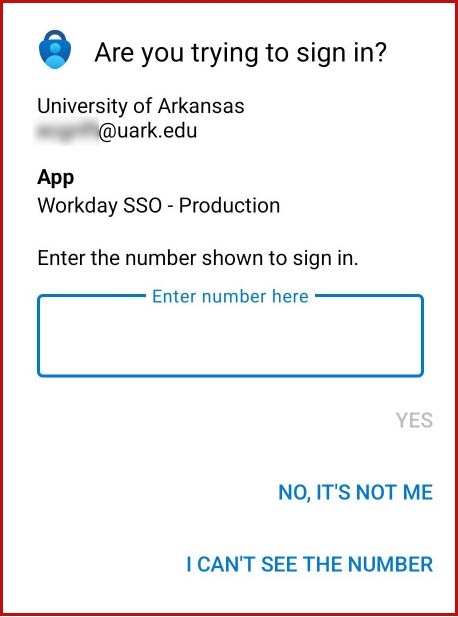
Your phone will show a notification that says "Are you trying to sign in?"
Tap the notification to open the verification screen.
Verify that this is a legitimate attempt to log in by reviewing the information shown on your phone. The Authenticator app will display information about what online service you are logging into.
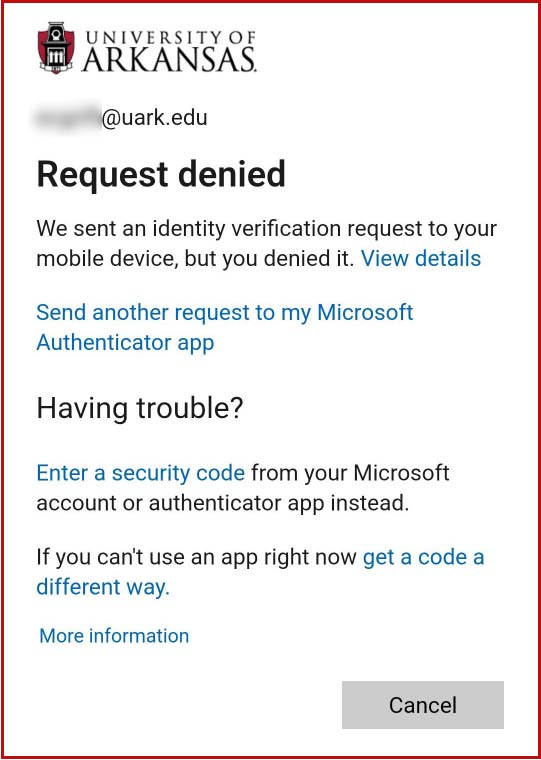
If you mistakenly deny a request, you will get the option to send another request.
Prevent Scams
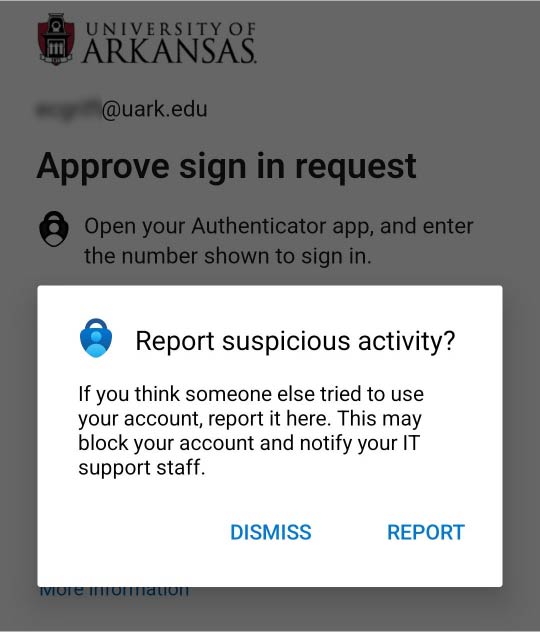
If you receive an MFA prompt when you are not actively trying to log in with MFA, or if it shows the wrong service, this is fraud and should be reported. If you are suspicious, tap "No, it's not me" and then tap Report to ensure IT Services is made aware of the bad attempt.